For the time being, we recommend using 32-bit Eclipse on Windows, not 64-bit.
If you decide to use 64-bit Eclipse, make sure that you do not re-use or share existing workspaces between 32-bit and 64-bit Eclipse instances. One of them will not work properly if you do. A workspace will only work with a 32-bit or 64-bit build of Eclipse that was initially used to create the workspace.
Extract the installation package to your preferred location, e.g. d:\. The package already contains a directory called eclipse.
Start Eclipse with a new empty workspace by launching the executable within the package. The program will query you for the workspace location.
Java VM selection preference page
If you have multiple JRE/JDK versions installed, check that your Eclipse is using the the right one from Window/Preferences: Java/Installed JREs as shown below. For example in windows the active JRE and JDK locations should be something like:
C:\Program Files\Java\jre6
C:\Program Files\Java\jdk1.6.0_<update number>
IMPORTANT: HTTP proxy
If you are on a network where the only way to access the internet via HTTP is through an HTTP proxy you need to make sure that Eclipse also uses this proxy. Corporate networks tend to be like this. If you do not do this, you cannot install anything using Eclipse's own plug-in installer.
Open the preferences dialog from main menu Window/Preferences. From the tree on the left go to General/Network Connections and modify the settings so that HTTP connections are checked to have a proxy.
Eclipse plug-in for Subversion
Simantics uses Subversion (SVN) as a version control system (VCS) for storing all of our source code. To access this data from neatly from Eclipse, you need to install some plug-ins into it. To install the plug-in, follow these instructions:
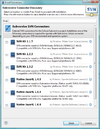
Install Subversion plug-in: Eclipse Subversive. Update Site is a part of Helios Update Site. From the main menu, open Help > Install New Software...
From the Collaboration folder, select the following items:
Subversive SVN Team Provider
Subversive SVN JDT Ignore Extensions
Select Finish and watch the installation proceed
Click Restart Now after the installation completes
After restarting, open the SVN Repository Exploring perspective and Eclipse should open a dialog called Install Connectors. Select SVN Kit 1.3.x and press finish.
Be warned that there has been a bug in Subversive which causes it to use the HTTP proxy for HTTPS addresses too. In order to get your SVN connection to www.simulationsite.net working, you may need to use direct connection proxy settings after installing the SVN plug-ins.
Simantics Tooling
Select menu Help/Install New Software and write http://www.simantics.org/update/utils into the Work with text field. Install the latest Ontology Development/Graph Feature. This provides the possibility to create Simantics Ontology Projects, i.e. allows IDE integrated development of the ontologies (data models) used in the Simantics application you are developing.
Import Simantics Java formatting rules into your Eclipse: save this XML file
In Eclipse: Window/Preferences and the Java/Code Style/Formatter folder, select Import... and find the XML file you just downloaded.
From the same preferences dialog also make sure that JDK 6.0 (or JRE 1.6) compliance is enabled:
Optionally enable Save Actions: Java/Editor/Save Actions:
enable Organize imports
enable Additional actions
enable Format source code (not always recommendable)
Configure: Code Organizing: Enable Remove trailing whitespace and Correct indentation
Download Simantics
The only thing you absolutely need to have for developing at this point is the target platform. Download and install it as instructed in the following and you're ready to go.
The target platform is a set of Simantics and Eclipse features and plug-ins that constitute the components you can build your Simantics/Eclipse-based software out of. These are needed as base to get working on your own contributions on top of the Simantics platform.
To get the platform one must perform a checkout from the SVN repository. You can use Eclipse's SVN Repository Exploring perspective for this task. You can also use other tools, such as TortoiseSVN or the SVN command line client.
Checkout the target platform for your version into a directory of your choice. See Target Platform for available versions.
Updating your target platform is now a matter of updating your target platform working copy.
Upgrading to newer versions of the target platform requires switching to/checking out another branch of the target platform.
Import the target platform into your eclipse IDE:
If you checked out the target platform using another tool besides Eclipse, first import the target platform into your workspace:
File/Import: General/Existing Project into Workspace: Select target platform location as root directory. DeselectCopy projects into workspace if selected. Press Finish.
Select menu item Window/Preferences from your Eclipse IDE.
Open the preference page Plug-in Development/Target Platform.
Activate your target platform definition by checking it and press OK.
If the project set import fails or does not do anything, please update your SVN plug-ins to the latest versions available.
Basic IDE Usage
Running Products from the IDE
Create a Product Configuration (.product) for your own product.
You can use sysdyn.product as a starting point for your own product configuration.
Be sure to only include the components that you want to have in your product, nothing more.
Launch the product from the links under the Testing section
When launching the Simantics Workbench application from the IDE, i.e. in development mode, the application will make sure that your application workspace will contain a Simantics database that contains the transferable graphs contained by the ontology project bundles that are included in your product's plug-in configuration.
Be warned that the application can't handle nearly all cases of database contents. This means that sometimes the easiest way to get your application running is clearing your application's workspace and starting with a fresh database.
IMPORTANT DEVELOPER NOTICE
Remember to always launch your application using the .product configuration editor as described above when you want to make sure that your IDE's application launcher configuration is up-to-date. The launcher configurations contain the set of plug-ins that are installed into the launched application which means which is not updated when the application is launched through the menu or (Ctrl+)F11.
The launcher configurations will most likely require updating when you
take new plug-ins into use (add them to features included by the product)
remove plug-ins from use
plug-ins are moved from the workspace to the target platform or vice versa
the target platform is updated
Testing your own contributions with Simantics
Scenario - Testing a set of new plug-ins
Prerequisites:
Some of the added plug-ins may contain ontologies.
You've created your own set of plug-ins based on the Simantics SDK.
You've defined features that include your plug-ins.
If you have not already created a product definition for yourself:
Optionally create a new plug-in project with the name product in it
Add a new Product Configuration to an existing or a new plug-in with basic settings
Open the new .product file with Product Configuration Editor
From the Overview tab, Product Definition section, select org.simantics.workbench.application as the application and create a new product extension with the New button beside the product selector. Also mark the product definition feature based.
Configure the product to your liking, i.e. add the features you need to it
Launch your product from the product configuration editor Overview tab
Product Deployment
Deploying a product in this context means taking a certain set of features and plug-ins and packaging into an installable and executable application.
Deploying Executable Product
Open a .product file in the Eclipse IDE (use Ctrl-Shift-R for searching)
On the Overview page of the product editor, select Eclipse Product export wizard from under Exporting
Fill in any missing details in the dialog and select Finish.
To create a directly executable product, you need to deselect Generate metadata repository.
To create a product deployable with SPM, you need to select Generate metadata repository.